
Got your node? Let’s get you online.
Connect to the MeshOregon Meshtastic network

This site is not affiliated with or endorsed by the Meshtastic project
Connecting to MeshOregon is easy!
Follow the instructions below and you’ll be connected in no time.
Know what you’re doing and already running firmware 2.7.15 or later?
Setting expectations: A note on node layers and coverage
There are, in general, 3 types of node.
- Infrastructure nodes – generally up high on an exceptionally tall building, radio tower, or mountain. Strong links to other infrastructure nodes, higher-end hardware. Large coverage can span 50+ miles.
- Roof/infill nodes – generally on residential or small commercial roofs. These nodes help carry signals to and from the infrastructure network down to your handheld / desk nodes. Medium coverage of generally 1-10 miles in most circumstances.
- Personal nodes – Mobile/handheld nodes at street/person level. Smallest nodes/antennas, smallest coverage, from 0-2 miles in most circumstances.
All of this is to say: You will have the best luck with a personal node if there are already roof and infrastructure nodes in your immediate area. If there are no roof/infill or infrastructure nodes nearby, your personal node may struggle to reach the mesh. If you’re a MeshOregon pioneer in your neighborhood, start with a roof node set to CLIENT_BASE first for your best chance of success. Your odds of success with a pocket node in a city with no other nodes for miles are quite low. Buildings/walls block a LOT of signal. MeshOregon works great, but we can’t break the laws of physics (or the FCC).
Step
1
Build your node
If you don’t already have a functioning node, you’ll need to build or buy one first!
Check out our build blog and equipment recommendations for more info if you need inspiration.
WARNING: CONNECT NODE ANTENNA BEFORE POWERING ON.
WARNING: IF YOU ARE USING A RAK NODE, VERIFY POLARITY BEFORE CONNECTING BATTERIES/POWER.
Step
2
Update your Firmware (REQUIRED)
MeshOregon requires Meshtastic firmware 2.7.15 or later to function properly. Joining a node with an earlier firmware version will adversley impact both your experience and the experience of others on the network.
If your node isn’t running at least 2.7.15, please use the button below to update it on Meshtastic’s website.
Important Note: PLEASE don’t deploy your node and forget about it! Out of date nodes can hurt the mesh. Please be sure to update your node’s firmware at least twice per year.
Step
3
Configure your node’s modem settings
There are 3 easy ways to configure your node’s modem settings so that it can communicate with other nearby nodes using the MeshOregon network. Note: Connecting to the MeshOregon network will DISCONNECT you from your node’s previous mesh (such as LongFast)
Choose ONE of the options below to configure your LoRa modem settings
IMPORTANT: After you complete this step, come back here and continue to step 4 to finish setup.
QuickConnect
Note: Only works when you are using the same mobile device you use to control your node with the Meshtastic app.
Just click the button below to load MeshOregon’s modem settings!
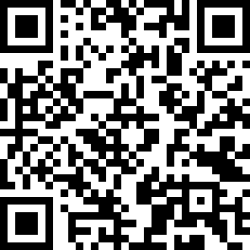
QR Code
Scan this code with your device running the Meshtastic app and connected to your node.
Manual Mode
For advanced users: Enter the settings for MeshOregon directly into your client.
Reveal manual settings
Please do not screenshot to share these settings with others. Instead, please share a link to this page so future users can get full context, including firmware requirements and suggested broadcast intervals. Thank you!
Use Preset: False
Bandwidth: 125
Spread Factor: 8
Coding Rate: 5
Frequency Offset: 0
Override frequency: 918.5 MHz
Primary Channel Name: MeshOregon
PSK: AQ==
Secondary Channel Name: Local
PSK: BQ==
Warning: All router role nodes must be coordinated and approved by your local MeshOregon coordination team. Do not enable a router role until you do so. Please leave your node in a CLIENT, CLIENT_BASE, or CLIENT_MUTE role.
Step
4
Configure your node’s other settings
There are several settings we can’t configure automatically. These are our suggested configurations.
First and foremost, we suggest you reset your NodeDB. Then:
- User > Set long name and short name to something unique of your choice.
Short name can be one emoji or up to 4 alphanumeric characters. - Device
- Device Role: Choose CLIENT for most. If this is a rooftop node on your home, choose CLIENT_BASE. ROUTER roles are almost not certainly for you, and must be carefully planned and coordinated. Please contact your local MeshOregon mesh coordination team and receive approval before selecting a router role.
- Node info broadcast interval: 12 hours or longer
- Time Zone: PST8PDT,M3.2.0/2:00:00,M11.1.0/2:00:00
- Position
- For MOBILE nodes with GPS, set broadcast interval to 24 hours, ENABLE smart position, set minimum interval to 15 minutes or longer, and set minimum distance to 200 or higher.
- For FIXED nodes, set broadcast interval to 24 hours, and DISABLE smart position. Enable fixed position and configure the location.
- For ALL nodes: Make sure the “timestamp” flag is DISABLED – UNLESS your node is either connected to NTP or has a GPS that it is actively using to get its position.
- Telemetry
- For most nodes, you can leave Broadcast Device Metrics off. If your node is solar and you want to remotely monitor its battery over the mesh, or you have another reason you want to broadcast metrics over the mesh to everyone, turn this on and set the interval to 6 hours or more for most cases. Longer is better.
Other suggested settings:
Please leave Store & Forward, Store & Forward ++, NeighborInfo, and other modules disabled unless you first coordinate with your local mesh coordination team.
Please note: The less unnecessary traffic your node generates, the better the mesh will work. Please be sure to disable any mesh packet sending which may be unnecessary.
Step
5
Send your first message!
Navigate to messages, channels, MeshOregon and send your first message.
As long as your message says “Acknowledged”, your packet made it to the mesh!
Your local mesh may send you welcome information, including optional registration instructions.
Note: It may take 24-48 hours for your nodelist to populate after initial setup. Be sure to FAVORITE nearby router nodes, as well as mutually favorite your handheld/mobile node and your CLIENT_BASE!
It is NORMAL AND EXPECTED that you will not see the same nodes as before – as your node can only communicate with one mesh a time, you will only see MeshOregon nodes once you switch. If for any reason you ever need to go back to LongFast, just reset your node.